顯示具有 使用手冊 標籤的文章。 顯示所有文章

星期二, 9月 14, 2010

Installation of Lotus Notes R5 Guide (Lotus client 5.0.11)

Installation from CD-ROM is preferred and the following steps can be followed.
Wait for Auto Run of the Lotus installation program start.
On the screen “Please select from the following options”, choose “Install”.


On the screen, Click “Clients….”.


On the next screen, choose “Lotus Notes”.


Click “Standard install”.


Select “Next”.


Click “yes” to confirm.

Input the Name field and the company field.


Click “Next” to confirm install on default directory.


 Click “Next”.

Click “Finish” to complete.

The following steps can be followed to configure the Lotus Notes Client.
Running Lotus Notes is started by clicking “Start” -> “Program” -> “Lotus Applications” -> “Lotus Notes”.
On the screen “Setting up connections”, click “Next”.


Select “I want to connect to a Domino server.”.
 Choose “Set up a connection to a local area network (LAN)”.

Input the mail server name into Domino server name field. (for example: madh02n)


Click “Browse” button to select the user ID.


A message is prompted for copying the ID file to the data directory (default directory : c:\lotus\notes\data), click “Yes”.
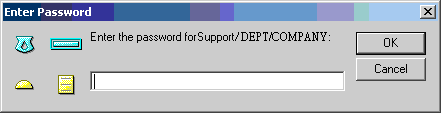
 Enter password for that user ID.


On the screen, Choose “I don’t want to create an Internet mail account.”
 On the screen, Choose “I don’t want to connect to a news server.”

On the screen, Choose “I don’t want to connect to another directory server.”
 On the screen, Select “I do not connect to the Internet through a proxy server.”

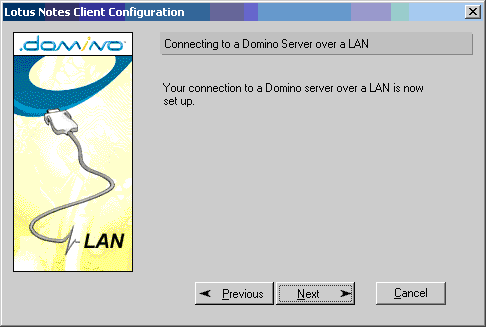
On the screen, Choose “Connect over local area network (or cable modem).”
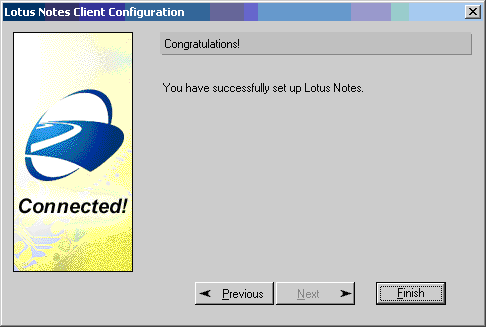
 Click “Finish”.

On the screen, Lotus Notes default use welcome page.

Click “database” icon on bookmark bar. Select “Workspace” and then right click mouse button should be show popup menu. Choice “Set bookmark as Home page.”

Click “Yes” to confirm, and then the installation should be finished.

星期四, 2月 05, 2009

User Guide for CIS Internet Access Users

NEW INTERNET ACCESS GATEWAY SYSTEM OF CENTRAL INTERNET SERVICES
FOR THE OFFICE OF THE GOVERNMENT CHIEF INFORMATION OFFICER
USER GUIDE Version: 1.1

1.0 Introduction
The Internet Access services of Central Internet Services enables government users to access the Internet access efficiently and reliably for their daily operational and business needs. The user interfaces for system logon and password maintenance are so designed to assure security and usage simplicity. This document provides guidelines on the steps that users will involve when using the IA services.
2.0 System Login
Users need to login the IAGS system successfully before able to use the CIS Internet Access services. Users can open a browser and start the Internet access by typing an URL in the browser (e.g. http://www.yahoo.com). The page will be redirected to the CIS Internet Access service login page (Figure 1) if the user is not already login. (Remarks: - do not access a site that requires SSL encryption (e.g. URL starts with https) during the first time Internet access (e.g. https://www.gmail.com).

Figure 1


With the redirected login page (Figure 1), users need to login using their usernames and the new passwords assigned in order to use the Internet services (Figure 2). Users should obtain their new passwords through the online Password Distribution System (PDS). Details on how to obtain new password through PDS please refer to CIS Theme Pages for the New Internet Access Services.

Figure 2


After clicking the “Log In” button in the login page (Figure 2), users can access the desired Internet web sites they have specified.


3.0 User Utilities
Users of IA services can access usage utilities through the “User Utilities” page (http://utility.cis.hksarg) (Figure 4). User may change the password, logout the CIS Internet Access service or refer to the CIS Guidelines by clicking the hyperlinks.

Figure 4


3.1 Change Password
Password Policy:
1) contain at least 8 characters;
2) contain at least 1 digit AND 1 alphabet;
3) change at least once for every 3 months;
4) cannot reuse last 12 used passwords;
By clicking the “Change Password” link, user will be redirected to the change password page (Figure 5).

Figure 5

By entering the username, current password, new passwords and press the “Modify” button, the password will be changed (Figure 6 & 7). Users are required to change their passwords periodically for security reason.

Figure 6


Figure 7


3.2 System Log Out
By clicking the “Log Out” link of the “User Utilities” page (Figure 4), users will be logged out of the CIS Internet Access service and system login will be required if users need to login again for the service (Figure 8).

Figure 8


推薦此文